Limitcode
Open source AI coding assistant for Sublime Text
Installations minus removals
Upgrades
- 67 installs
- 4 stars
Links
Versions
1.1.9
(ST4050+)
·
More
-
(ST4050+)
1.1.8
·
2026-10-06 01:16 -
1.1.7
·
2026-10-05 18:26 -
1.1.6
·
2026-09-20 21:18 -
1.1.5
·
2026-09-17 20:37 -
1.1.4
·
2026-09-15 12:36 -
1.1.3
·
2026-09-14 17:34 -
1.1.2
·
2026-09-05 15:34 -
1.1.1
·
2026-09-05 15:27 -
1.1.0
·
2026-09-05 15:18 -
1.0.6
·
2026-08-30 15:06 -
1.0.5
·
2026-08-30 13:32 -
1.0.4
·
2026-08-24 14:43 -
1.0.3
·
2026-08-24 14:33 -
1.0.2
·
2026-08-19 16:01 -
1.0.1
·
2026-08-18 13:41 -
1.0.0
·
2026-08-18 02:08
Limitcode
Limitcode is an AI pair programming agent for Sublime Text.
It works the way a pair programmer works: the agent only sees and touches the files you have open in your editor. You steer the session, you choose what it reads, and every edit lands in a file you can review immediately.
No hidden filesystem scans. No shell access. No autopilot.
Why pair programming
Limitcode exposes exactly three tools:
read_filewrite_to_fileedit_file
These tools can only operate on files that already have a path and are open in
the active Sublime Text window. Closed files cannot be read or modified, and
write_to_file cannot create new files.
That constraint is the product: the agent works with you, inside the code you show it, one step at a time. If you want an autonomous agent that searches the project, runs commands, and manages its own context, see Limitcode Pro.
Features
- Side-by-side streaming chat inside Sublime Text
- Persistent conversation history per session
- Model and provider selection with per-session control
- Configurable reasoning effort and visible thinking
- Prompt history and @-file references
- A deliberately small, reviewable tool surface
LSP integration (optional)
If you have the LSP package installed, Limitcode will use its diagnostics after each edit to give the agent feedback on syntax and type errors, so it can catch and fix issues before continuing. This is optional and automatic — it only activates if LSP is already installed.
Providers
Limitcode supports:
- OpenAI
- DeepSeek
- Anthropic
- Gemini
- OpenRouter
- Moonshot AI (Kimi)
- Ollama
- LM Studio
Ollama and LM Studio run locally without an API key. Cloud providers require a
key configured through Limitcode: Setup Provider API Key or the api_keys
object in Limitcode.sublime-settings. Model lists are fetched live from each
provider's /models endpoint (with a cached fallback), so new models appear
automatically.
Quick start
- Place the repository in Sublime Text's
Packages/Limitcodedirectory. - Restart Sublime Text.
- Run
Limitcode: Setup Provider API Keyfrom the Command Palette. - Run
Limitcode: Open Chatfrom the Command Palette.
Open every file you want the agent to read or edit before sending a request.
Demo
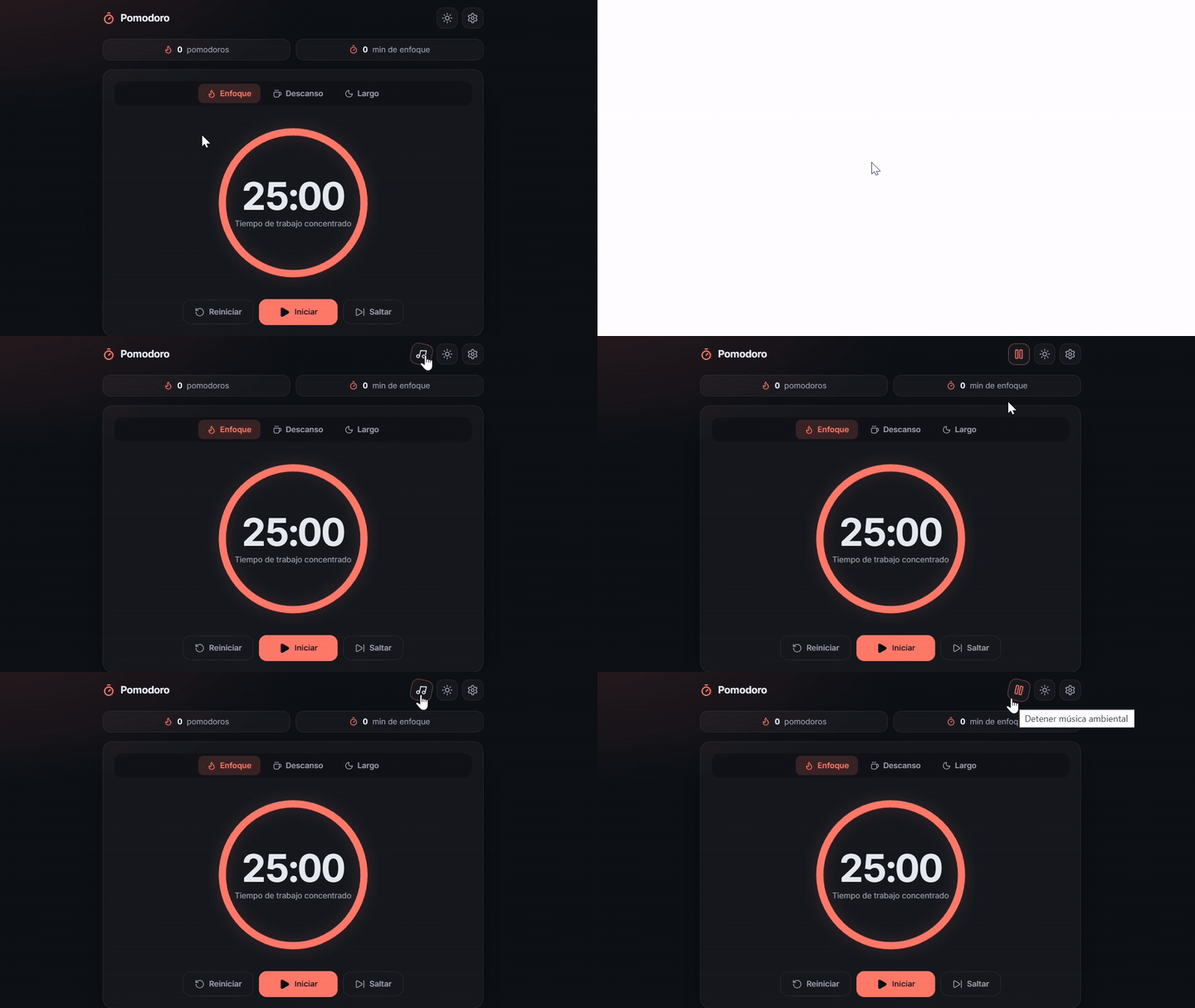
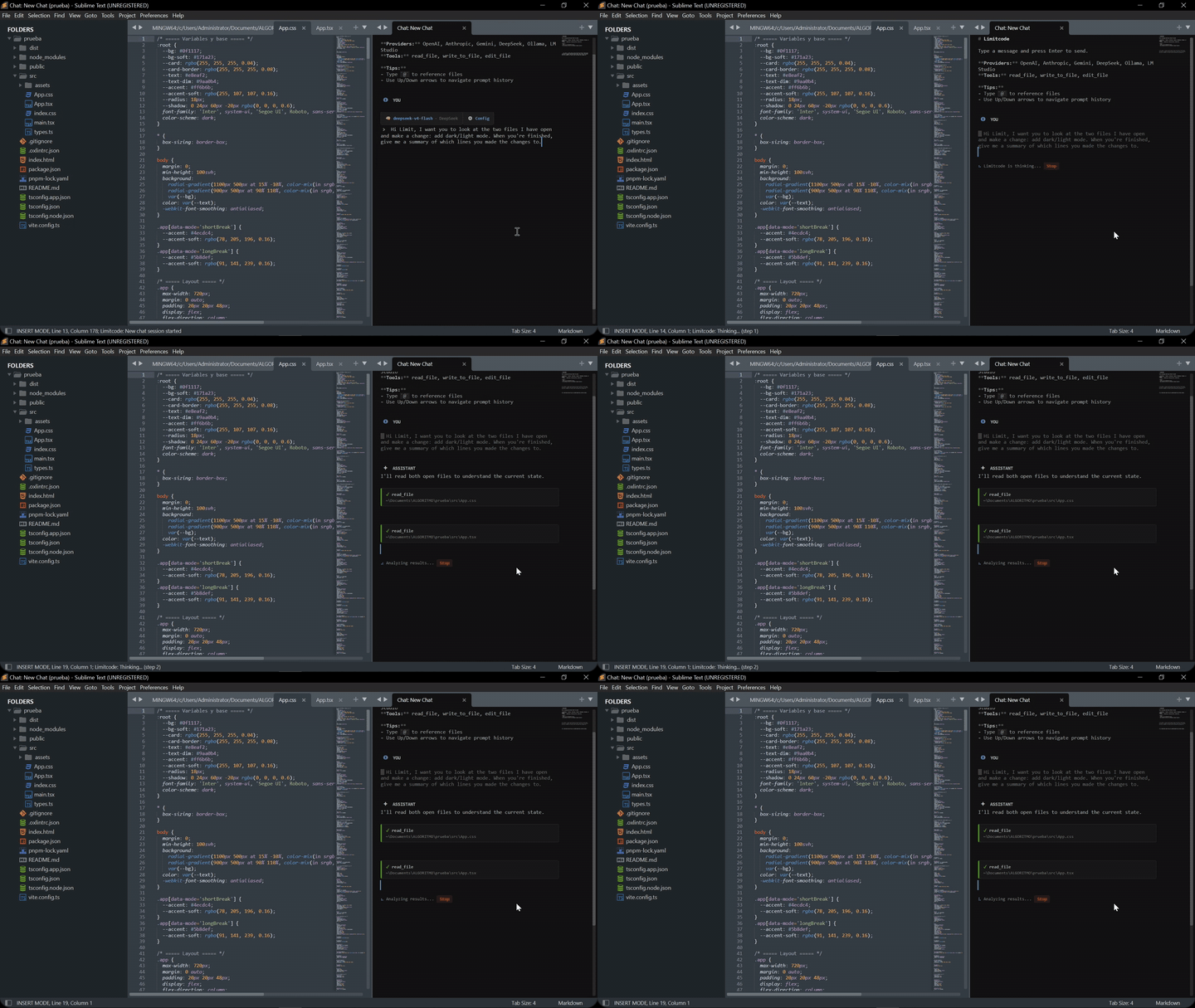
Watch Limitcode build a Pomodoro timer app end to end — including the lo-fi melody it composed and exported as an audio file.
A typical session
- Open the file you want to work on.
- Select the code you care about and run
Limitcode: Send to Agent, or just describe the change in the chat. - Review the edit the agent applies to your open file.
- Ask for adjustments, or move on.
The agent never leaves the files you opened, and it never runs commands on your machine.
Commands
Limitcode: Open ChatLimitcode: New ChatLimitcode: Chat HistoryLimitcode: Rename SessionLimitcode: Delete SessionLimitcode: Send to AgentLimitcode: Change ProviderLimitcode: Change ModelLimitcode: Increase Chat Font SizeLimitcode: Decrease Chat Font SizeLimitcode: Reset Chat Font SizeLimitcode: Set Reasoning EffortLimitcode: Toggle Show ThoughtsLimitcode: Setup Provider API KeyLimitcode: Open SettingsLimitcode: Open Key BindingsLimitcode: Clear ChatLimitcode: Cancel Active ResponseLimitcode: Stop Agent
Keyboard shortcuts
Limitcode does not claim global shortcuts when installed. Inside the chat,
Enter, Shift+Enter, Escape, Up, and Down are context-specific controls.
To add your own global shortcuts, run Limitcode: Open Key Bindings and place
bindings in the user pane. For example:
[
    { "keys": ["ctrl+alt+l"], "command": "limitcode_open_chat" },
    { "keys": ["ctrl+alt+a"], "command": "limitcode_send_to_agent" },
    { "keys": ["ctrl+alt+x"], "command": "limitcode_cancel_request" }
]
Optional chat font shortcuts
The chat has its own font size and does not change the editor font size. It is
disabled by default in the configuration with "chat_font_size": "auto", which
makes the chat inherit Sublime's global font_size.
To use a fixed size, add a numeric value to the user settings:
{
    "chat_font_size": 11
}
The Increase Chat Font Size, Decrease Chat Font Size, and Reset Chat Font Size commands are available from the Command Palette. They only work when the
Limitcode chat view is active and save the selected chat size for future chats.
Limitcode does not assign Ctrl+Plus or Ctrl+Minus by default. To add your
own shortcuts, use Limitcode: Open Key Bindings and add bindings such as:
[
    {
        "keys": ["ctrl+="],
        "command": "limitcode_increase_chat_font_size",
        "context": [
            { "key": "setting.limitcode_chat_view", "operator": "equal", "operand": true }
        ]
    },
    {
        "keys": ["ctrl+-"],
        "command": "limitcode_decrease_chat_font_size",
        "context": [
            { "key": "setting.limitcode_chat_view", "operator": "equal", "operand": true }
        ]
    }
]
Configuration
{
    "default_provider": "openai",
    "default_model": "gpt-5.5",
    "api_keys": {
        "openai": ""
    },
    "provider_base_urls": {},
    "temperature": "auto",
    "max_tokens": 8192,
    "max_iterations": 50,
    "chat_font_size": "auto",
    "reasoning_effort": "off",
    "show_thoughts": false
}
temperature accepts "auto" or a number. max_tokens accepts a positive
integer or "auto". Reasoning effort can be off, low, medium or high;
unsupported models ignore it. chat_font_size accepts "auto" or a positive
number and applies only to the Limitcode chat view.
Chat style customization
The chat status bar can follow your Sublime Text theme without changing the rest of the editor.
Quick option: chat_style
Adjust only what you need in Limitcode.sublime-settings:
"chat_style": {
    "chip_background": "",
    "chip_border": "",
    "chip_text": "",
    "link_color": "",
    "muted_text": "",
    "muted_opacity": 0.4,
    "chip_radius": 4,
    "chip_padding": "3px 9px"
}
| Option | What it controls |
|---|---|
chip_background |
Chip background |
chip_border |
Border color |
chip_text |
Chip text color |
link_color |
Link color (model, mode, config) |
muted_text |
Secondary text color (provider) |
muted_opacity |
Secondary text opacity (0 to 1) |
chip_radius |
Corner radius |
chip_padding |
Inner padding of the chip |
Empty values inherit the active theme.
Example for dark themes with low contrast:
"chat_style": {
    "link_color": "#ffcc66",
    "muted_opacity": 0.8,
    "chip_radius": 3
}
Advanced option: chat.css
Create Packages/User/Limitcode/chat.css to override anything not exposed in
the settings:
#limitcode-status {
    --limitcode-chip-background: #252a34;
    --limitcode-chip-border: #88c0d0;
    --limitcode-chip-link: #ffcc66;
    --limitcode-chip-muted: #c8d3e0;
}

#limitcode-status .chip {
    border-radius: 6px;
}
The file belongs to the user and is not overwritten on updates.
Priority order:
Package base CSS
      |
      v
chat_style (settings)
      |
      v
Packages/User/Limitcode/chat.css
Limitcode Pro
Limitcode Pro is the fully autonomous version of Limitcode. It keeps the same editor-native workflow and adds:
- Project-wide file listing, searching, and targeted edits
- Approved shell command execution
- Web search and page fetching
- Reusable skills and MCP server connections
- Focused subagents and batched workflows
- Account sign-in for GitHub Copilot, OpenAI Codex, and Google Antigravity
- Automatic context compaction and snapshot-based undo/redo
- License-gated activation on up to three devices
Pro runs entirely inside Sublime Text with a configurable permission model, and is distributed as a packaged release rather than source.
Pro users can report bugs and suggestions here too, or by email. If you open an
issue, add the [Pro] tag to the end of the title so Pro reports are easy to
tell apart from the OSS ones.
Feedback and issues
Have a comment, question, suggestion or bug report? Open an issue in this repository — it is the preferred place for anything reproducible and public. You can also reach out by email if you prefer.
If your report is about Limitcode Pro, add the [Pro] tag to the end of the
title (for example, Too many logs in console! [Pro]) so Pro and OSS issues
are easy to tell apart.
[email protected]
Please do not paste provider API keys or tokens, personal data, or logs and screenshots that contain your own code, prompts or file paths. For anything sensitive, use email instead.
Development
Run the test suite from the repository root:
python -B -m unittest discover -s tests -p "test_*.py"
License
Licensed under the GNU General Public License, Version 3. See LICENSE.